Machines
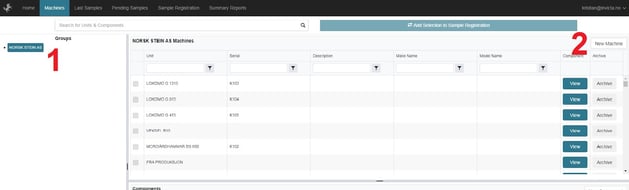
On this page you can, among other things, search for and archive machines and test points. You can also save components for sampling.
The screen is divided into 3 panels. When you first arrive here, you will see that the page is empty and that the "Add Selection to Sample Registration" button is inactive. To continue, you must select a group under "Groups" on the left-hand side.
With reference to the red numbers:
- Search field - Here you can search for machines and test points
- "Add Selection to Sample Registration" - Here you can add the selected test points to pre-registration
- Groups - A list of the groups of machines your account has access to
- Machines / Units - A list of machines linked to the group you have selected
- Test points "Components" - A list of test points linked to the machine in (4)
- In the search field, matches for both machines and test points appear continuously. If you select one of them, the accompanying data is shown in the overview.
Creating new machines and components for sampling
To create new machines and components for sampling, do the following:
- Select the group where the new component should be placed.
- Click << New Machine >>
If the < > button is not visible, this may be because you have not selected a Group in the left-hand panel.
If the << New Machine >> button is still not visible, it is because you have not been given administrator access.
Contact support@invicta.no to have this activated.
<< New Machine >> opens a new dialog box where you fill in the necessary information.
When the information has been filled in, click << Save And Add New Component >>
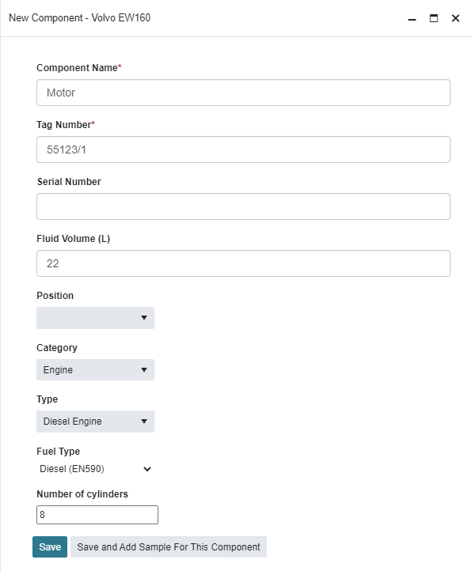
This opens a new dialog box for filling in information for additional components.
If there is only one component, click << Save and Add Sample For This Component >>.
If several components are to be registered, click < >.
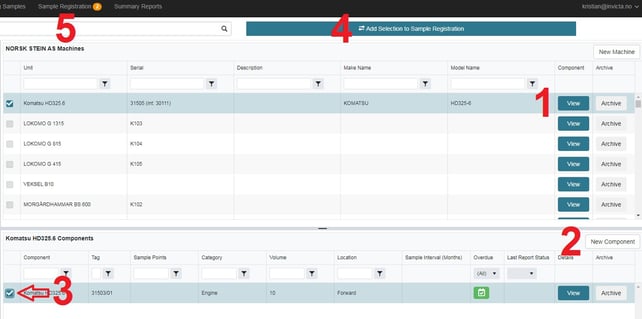
When the machine and components have been loaded, it will look like this.
- Click < > to bring up the components that have been created.
- Click << New Component >> to add more components (e.g. Right wheel if you have already created Left wheel).
- Select the components to be analysed.
- Click << Add Selection to Sample Registration >> if this has not already been done in the << New Component >> dialog box.
- The machine and components will now be under the << Sample Registration >> tab.
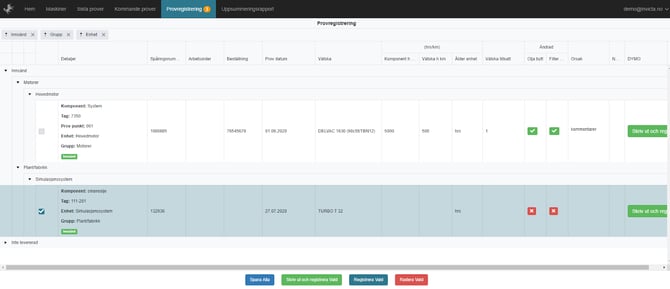
In the << Sample Registration >> tab you can make final changes and add notes before printing labels with a QR code.
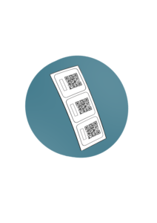
Note that the generated tracking number must be replaced with the QR code of the sample.
Finish with "Submit Selected"
If you would like a walkthrough, look for "Register Sample" on the home page